Posts

Showing posts with the label Emporio

Add snippets to the Emporio theme
Image
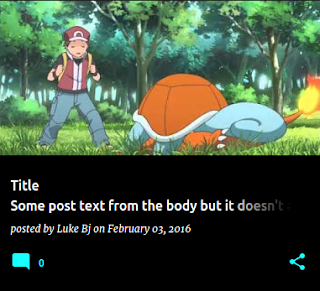
A lot of people love the image-focused look of the newer Emporio template. This article explains how to tweak your template's XML to add a short snippet to the Emporio posts - unfortunately, there's no easy way to add in snippets for Emporio, without customizing the markup. But, if you're feeling brave, head to: Theme -> Edit HTML -> Jump to Widget -> Blog 1 If you search for 'snippet-container', you'll come across: <div class='snippet-container r-snippet-container'> <div class='r-snippetized'> <data:post.title /> </div> <b:if cond='data:post.title != ""'> <div class='snippet-fade r-snippet-fade hidden'></div> </b:if> </div> Notice that it's just got the title. You could change it to add something like: <div class='snippet-container r-snippet-container'> <div class='r-snippetized'> <data:post....

Remove the header image for posts in Emporio

The new Emporio template features a large, blurred-out copy of the featured image for a post as the header image. Some like this feature, some don't - here's how to remove it if you're not a fan! Head to Theme => Edit HTML Search for ' data:view.isSingleItem ' The code that you see should look something like this:  <b:if cond='data:view.isSingleItem'> <b:if cond='data:widgets.Blog.first.posts.first.featuredImage'> <b:include data='{ image: data:widgets.Blog.first.posts.first.featuredImage, selector: &quot;.bg-photo&quot; }' name='responsiveImageStyle'/> <div class='bg-photo-container'> <div class='bg-photo'/> </div> </b:if> </b:if> Delete the XML including the <b:if> tag code. Happy Emporio'ing!

Add Whatsapp sharing to the new templates

Blogger's sharing options include Facebook, Twitter, and Pinterest - some of the more popular platforms - but Whatsapp is missing from the list. This article describes how you can customize the markup of your Blog gadget, to include Whatsapp in the sharing buttons list to include Whatsapp. Note: Though the concepts in this article are re-usable elsewhere, it is written assuming that you are using one of the new Themes - Contempo, Soho, Emporio or Notable. For Dynamic views, visit the  Dynamic views whatsapp instructions . Head to Theme => Edit HTML , and use the Jump to gadget  helper to jump to Blog1 . Update the sharingButtonsMenu includable The sharing buttons for a post are defined in the sharingButtonsMenu  includable, which is called as part of the stack from the postShareButtons includable, which can be toggled on and off in the Blog Posts settings (under the 'Share Buttons' byline). To add Whatsapp in the mix, we want an extra line item ( <li...

Offset the HTML anchor to adjust for the sticky header

In the new Blogger templates, they heavily feature a sticky header , or a fixed header, which follows you down the page once you're past the title page. This header can get in the way when linking to anchors (fragments) in your pages, since the browser will use the anchor's position in the page when it jumps down to the content. To counter this issue, we can add a little negative-margin, positive padding CSS hack to the : target anchor. Example header If you click the get link icon (the icon) above, you'll see how it jumps a little above the header. *:target:before { display: block; content: " "; height: 65px; margin-top: -65px; visibility: hidden; } To apply this style to your blog, head to: blogger.com  => (Your blog) => Theme => Customize => Advanced => Add CSS and add it to the text area, and save. Happy anchoring!

Add a background image to Emporio

Emporio currently doesn't have support for a background image, though it does have a background image variable. Very similar to the instructions for  making the Simple theme's background responsive , the following gadget will change that. Click the button below, and add the gadget. Head to Theme => Customize => Background Select a background, apply, view the blog. NOTE: Changes won't show up in the Template designer/customizer, but hitting apply will set the background! The gadget contains the following custom markup. <b:includable id='main'> <style> /* Hide this gadget. */ #<data:widget.instanceId /> { display: none; } </style> <b:if cond='data:skin.vars.body_background.image'> <b:include name='responsiveImageStyle' cond='not data:view.isPreview' data='{ image: data:skin.vars.body_background.image, ...