Posts

Prevent search crawlers indexing my Archive pages

If your blog archive only has one post for a given page, say 'March 2016', then the content overlap for that post is very high when comparing the blog archive page to the actual post page. This can lead to the archive and the post both showing as results when you run a search. To prevent this happening, you can add a meta tag to your template. Go to Template => Edit HTML Search for 'all-head-content' Add the following underneath  the tag for all-head-content  <b:if cond='data:blog.pageType == "archive"                 or data:blog.searchQuery != ""                 or data:blog.searchLabel != "" '>     <meta name="robots" content="noindex" />   </b:if> This will cause the noindex meta tag to be rendered on archive and search pages, preventing duplicate results for the content in your post. Happy Blogging!

Make Google Photos img tags responsive

Image
Blogger, like Google Photos, has great photos handling which allows you to resize an image just by tweaking its URL, which can be incredibly useful for using dynamic images to ensure that your mobile readers aren't downloading MB of data over their mobile network. URL Size Parameter Take, for example, a panoramic image that I took of the coliseum in Rome. Its original size is a whopping 4.6MB - overkill for any mobile client viewing it. Even on an iPhone 6+, we're talking 1920x1080 res, when the original image itself is 8682x2630. Uploading the image to Blogger and adding it to this post, we see straight away the resizing behaviour in action. The image above is the default size when you insert into blogger's post editor: 320px wide. The URL is: https://blogger.googleusercontent.com/img/b/R29vZ2xl/AVvXsEisgLw0X4x4JCco_ogwQMt44xWIEP9dhtNmAAHBTxSQoixIVBMt0EQRpUbIBOwYoQlR5BJzUOyqt-UUAtUti_u86nQbyb01pzcixAXofDM9b_RacvC2IjbVJ-U9rHi0SeXb48cNcUMatejI/ s320 /PANO_...

Change the colours of the Polls Widget

Image
For some reason, the polls widget does not have settings for its colours in the configuration dialog. It seems to pick up its colors from template variables instead. Find or Add the variables The variable that the polls widget uses for its text color is sidebar.text.color - if this variable already exists in your skin, you will find it in the group that it belongs to. If it doesn't already exist, add it by copying this into the <b:skin>  section of your blog's template ( Template => Edit HTML).   <Group description="Poll Widget" selector="widget.Poll">      <Variable name="sidebar.text.color" description="Text Color" type="color" default="#2288bb"  value="#2288bb"/>      <Variable name="sidebar.link.color" description="Link Color" type="color" default="#2288bb"  value="#2288bb"/>    </Group> Add new variables if ...

Set a custom domain for your blog with BlueHost

Image
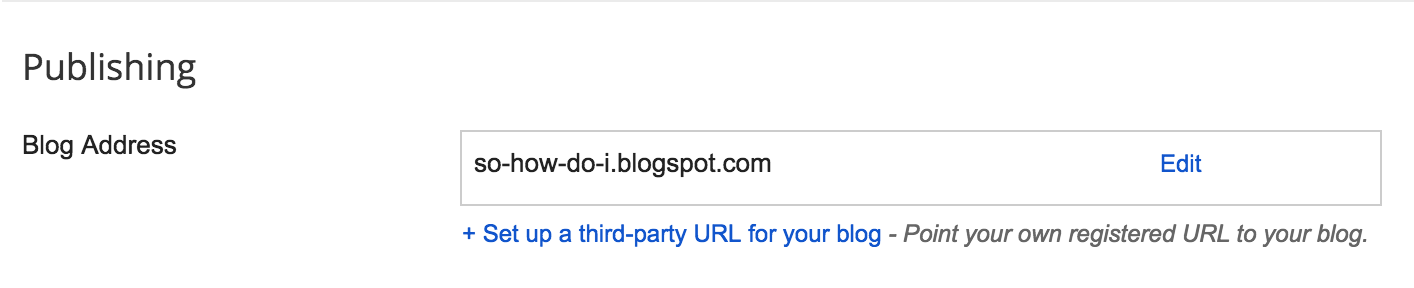
A custom domain gives you a much more personal touch when it comes to publishing your blog. If you have an existing website, and want to use a subdomain to point at your Blogger blog, here's how to set one up if you're using BlueHost - though the same concepts apply to all domain vendors. Add your custom domain to your blog Navigate to Settings => Basic . The setting for adding your custom domain. Click '+ Set up a third-party URL for your blog'. Enter your custom domain, including the subdomain that you want to use. Currently, Blogger requires you to use a subdomain , with the option of redirecting the naked domain to that subdomain . Here's some examples to clarify what naked domains, domains, and subdomains mean. Say you own example.com as your domain. Top Level Domain: .com Naked domain (no subdomain): example.com Subdomain 'blog': blog.example.com If you then choose to redirect your naked domain to your blog's subdomain, visit...

Make post title hyperlinks colour the same as the title colour

Image
In the template designer, some templates have a different colour for hyperlinks than for the title. We can re-use the same variable value in order to override the hyperlink colours with the post title colour. Note: This example is done for the  Simple  template. CSS variables and definitions may be quite different in other templates, but the same concepts apply. Change the Skin CSS Skin CSS can be found when editing your template's HTML, under Template => Edit HTML. The skin for a template is near the top, in the <head> element. Add a variable for post.title.color Find the variable group relating to the class of the post titles - for example, in 'Simple' templates, the variable group has description="Post Title". Add the new variable. <Group description="Post Title" selector="h3.post-title, .comments h4"> <Variable name="post.title.font" description="Font" type="font"...

Filter out certain labels from my Blog Homepage

Image
Sometimes, you want to be able to filter your posts on the homepage. Maybe you want to use the label "Home" to be the only posts that show on the homepage, or maybe you don't want to show your "Cooking" and "Dancing" posts on the home page. Here's how you can filter by label. Notes:  This does not require any javascript! This  does not apply to Dynamic Views templates. This will look funny if you have posts grouped by date, as there will be dates with no posts. WARNING: This method will filter blogs of a certain label out of a list of all the posts that were loaded. So, if you only load the first 7 posts in your feed, and then filter to "Home" posts, you're going to only see the posts out of the first 7  which have the label Home. You can, of course, increase the number of posts shown in the home-page , but do so with the knowledge it could slow the homepage on your blog down! Filtering to Posts with a specific Label ...

Increase the number of posts shown on the home page

Image
Sometimes, you might have enormous posts, and only want to show two or three on the home page. Other times, you might have posts which are just videos , so you want to show a bigger number. Or maybe you need to increase the number so that the filter on your home page shows a decent number or results. 'Show at most' Setting The Show at most  setting is found under Settings => Posts and Comments => Show at most . Change the Show at Most  setting to show a different number of posts on the home page Warning: Changing this setting to a large number will slow down the load time for your blog!  Blogger is pretty good at caching the results of a rendered page, but it still takes ten times as long if it has to load 50 posts versus loading 5. Change with caution! Happy Blogging